What is Halo Learn?
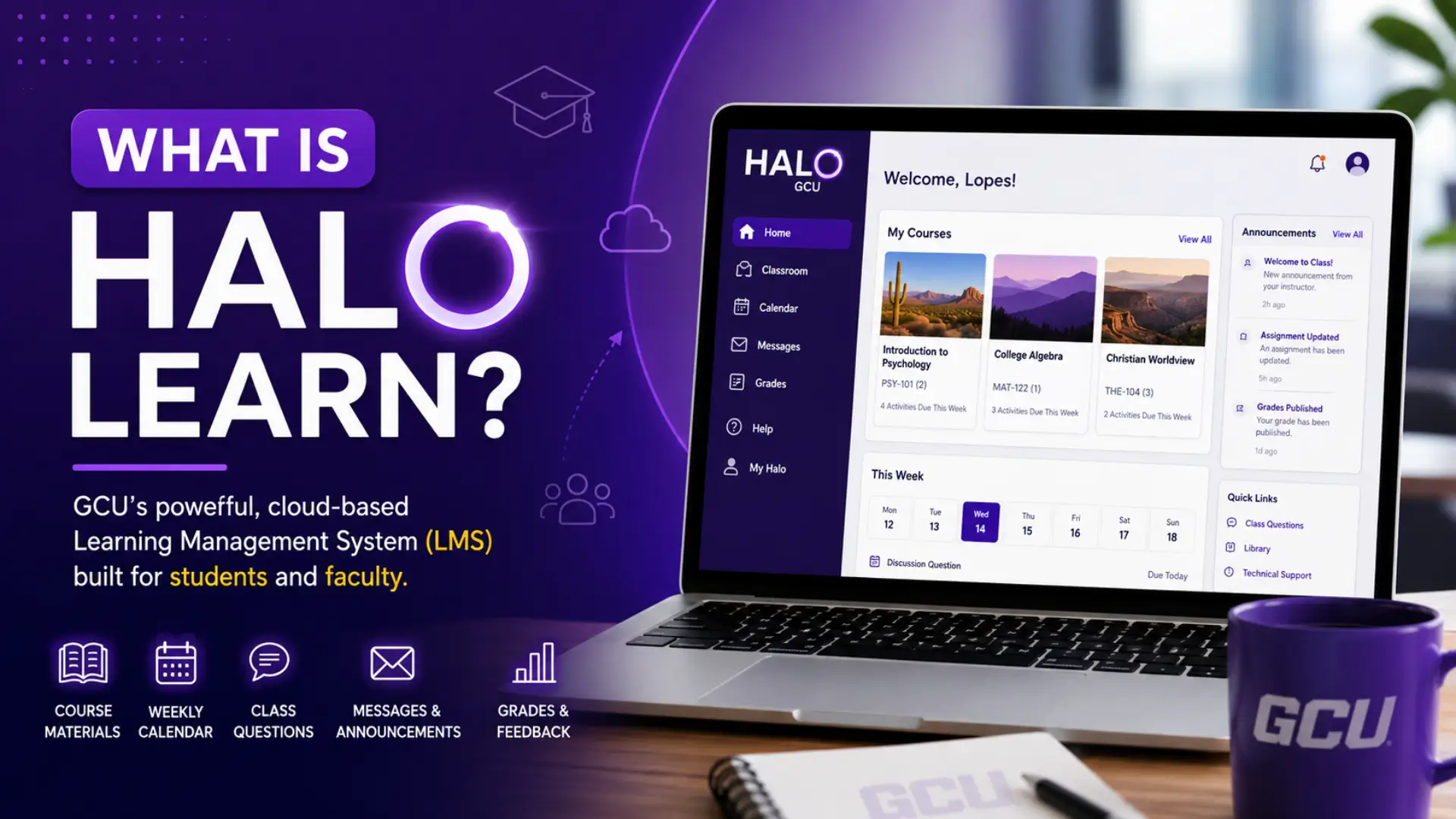
Halo Learn is Grand Canyon University’s (GCU) proprietary, cloud-based Learning Management System (LMS). It is the official digital classroom where GCU students and faculty access course materials, submit assignments, participate in discussions, track grades, and communicate with instructors all from one centralized platform. Halo Learn replaced the legacy LoudCloud LMS in Fall 2021 and is actively used by GCU’s online and ground campus students as of 2026.
GCU’s own LMS (not Canvas, not Blackboard). Login at my.gcu.edu → access courses, grades, discussions. Mobile app available on iOS & Android. Try it free at testdrive.gcu.edu.
What is Halo Learn GCU?
To understand Halo Learn GCU, it helps to know where it came from. For nearly a decade, Grand Canyon University and Grand Canyon Education (GCE) used a third-party LMS called LoudCloud.
During the COVID-19 pandemic, ground campus students were suddenly required to take classes online. LoudCloud’s weaknesses became clear poor mobile support, aging architecture, and limited responsiveness across screen sizes.
GCU needed a modern, purpose-built solution. In Fall 2021, GCU officially launched Halo Learn as the unified LMS for all students both online learners and ground campus Lopes.
The transition was announced on GCU’s official news site, where GCE’s Chief Technology Officer Dilek Marsh confirmed the platform is “built on and using new technology” while preserving everything LoudCloud did well.
The platform is developed by Grand Canyon Education specifically for GCU not licensed from a third-party vendor like Instructure (Canvas) or Anthology (Blackboard). This gives GCU direct control over updates, performance improvements, and deep integration with other university systems.
Halo Learn is GCU’s own proprietary LMS. It replaced LoudCloud in Fall 2021 and serves both online and ground campus students from a single unified platform.
Key Features of the Halo Learn Platform
Here is a complete breakdown of every major feature inside the HALO learning portal, based on GCU’s official support documentation:
1. Centralized Dashboard and Weekly Calendar
When you log in to Halo Learn, the homepage shows class cards for each active course. Each card displays the course name, active dates, instructor name, and student count. Clicking the student count shows your classmates’ names.
Inside any course, the default view is the Weekly Calendar. It shows all assignments, quizzes, discussion questions, and participation requirements for the current week. Click any week number to review past work or preview upcoming deadlines.
Important time zone note: Halo Learn always displays GCU Time in Arizona Mountain Standard Time (MST). Arizona does not observe Daylight Saving Time so your local time difference may shift twice a year. Always check GCU Time before submitting deadline-sensitive work.
2. Classroom Materials Hub
All course content lives in the Classroom Materials section readings, lectures, assignment instructions, quizzes, and discussion prompts.
Topics are listed in a left-side sidebar. Clicking any topic reveals that week’s resources and assessments. Downloadable readings appear under “Resources” on the right. No hunting through email attachments or multiple tabs. Everything your instructor has prepared is in one organized place.
3. Class Questions: The Interactive Open Forum
Class Questions is one of Halo Learn’s most underused features. It is an open forum where any student can post a question. Instructors, Instructional Assistants (IAs), or fellow classmates can answer.
As GCU’s navigation guide puts it it is the online equivalent of raising your hand in a physical classroom. Before messaging your instructor, check Class Questions first. Someone may have already asked the same question and gotten a detailed answer saving you time.
4. Private Messaging and Announcements
Halo Learn supports private messaging for one-on-one communication between students and instructors. Faculty can also send class-wide announcements deadline changes, resource updates, or general reminders. Both message types trigger push notifications in the Halo Learn mobile app when enabled.
5. Grade Tracking and Assessment Feedback
Students can monitor grades in real time as instructors publish scores. A notification fires the moment a grade is posted either as an on-screen alert or a mobile push notification. You never have to keep manually refreshing the gradebook to see if your assignment was graded.
6. My Halo Settings and Personalization
The My Halo Settings section (click your name, top-right corner) lets you:
- Update your student profile
- Manage connected devices
- Configure which alert types you receive
According to GCU’s settings guide, your Halo profile is visible to classmates and instructors whenever they click your picture. Adding a photo and a short bio is worth the two minutes it establishes your presence in fully online courses.
What is the Halo Learn App?
The Halo Learn mobile app is a companion application for the Halo Learn website not a replacement. It is free on both iOS (Apple App Store) and Android (Google Play Store), published by Grand Canyon University.
According to the official App Store listing, the app’s primary purpose is to deliver near real-time push notifications for events the user has opted into.
What Alert Types the App Supports?
Both students and faculty receive:
- New private messages
- New course announcements
Students additionally receive:
- Grade publications (when a score is posted)
- Assignment reassignments (when resubmission opens)
- New group collaboration messages
All alerts are fully opt-in. You pick which notifications matter to you and on which device.
How to Set Up the Halo Learn App?
- Download Halo Learn from the Apple App Store or Google Play (publisher: Grand Canyon University).
- Log in with your GCU credentials.
- On the Halo Learn website (desktop), click your name (top-right) → select My Halo Settings.
- Enable Halo Alerts. The app will prompt you if alerts are not yet active.
- Choose which alert types to turn on messages, grades, announcements, etc.
- Your device appears under Manage Devices, confirming the connection.
- To disconnect a device later, click “Disconnect” next to it in Manage Devices.
Important: You need an active GCU account to use the app. The mobile app is for alerts only for full course access and assignment submissions, always use the Halo Learn website on a desktop or laptop browser.
GCU Halo Student Portal – How to Log In to Halo Learn?
Based on GCU’s official access guide, here is the complete login process:
Step 1: Use the GCU Portal
Go to my.gcu.edu and sign in with your GCU username and password. The GCU Halo Student Portal always routes you to the correct Halo Learn link for your active course. This is the most reliable entry point.
Step 2: Direct Halo Access
If the GCU Portal is unavailable, go directly to lms.gcu.edu using the same credentials.
Step 3: Verify Your Role
Faculty with multiple roles Instructor, Instructional Assistant, or Student may land in the wrong role after clicking a course link. Click your profile icon (top-right) → select the correct role from the dropdown → confirm. The GCU role-switching guide covers this in full detail.
Step 4: Open Your Course
Find your active course card on the Halo homepage. Click Go to Class to enter your virtual classroom. The Weekly Calendar loads as the default view.
Step 5: Connect Mobile Alerts
After logging in on desktop, go to My Halo Settings and connect your phone for push notifications via the Halo Learn app.
Access Timing: Students typically get course access 3 days before the start date but it is only guaranteed from the official start date. If you see a 403 error, your account may not yet be in the system. Contact GCU Technical Support.
Halo Test Drive – Try the Halo Learn LMS Before You Enroll
The Halo Test Drive is a free sandbox where anyone can explore Halo Learn no GCU account required. Most universities do not offer open LMS access before enrollment. GCU’s Test Drive is a genuine differentiator for prospective students. Access it at testdrive.gcu.edu.
How to Use the Halo Test Drive?
- Go to testdrive.gcu.edu.
- Click Start Exploring under the Prospective Student option.
- You receive sample login credentials for student and instructor roles.
- Click Student Login and use the provided credentials.
- You land inside a sample course “Introduction to Graduate Studies in the Liberal Arts.”
- Explore freely. Access built-in Stonly Guides via the Help icon (top-right) for guided walkthroughs.
GCU also offers live Student Success Webinars with real-time platform presentations. Details are on the GCU Technical Support Center.
How GCU Structures Online Courses in Halo Learn?
When faculty build a course in the HALO learning portal, every class follows a consistent weekly structure.
Here is what you will find inside every Halo class:
- Class Calendar master weekly schedule of all activities and due dates
- Classroom Materials readings, lectures, and resources organized by topic and week
- Discussion Questions (DQs) required weekly prompts with peer engagement
- Assignments/Assessments papers, projects, or quizzes with weekly deadlines
- Class Questions open-question forum for course-related queries
- Private Messaging direct one-on-one communication with your instructor
Regarding past course access:
According to GCU’s official policy, students retain access to completed courses for six (6) weeks after the end date. For the first three (3) weeks, you can still make changes. After six weeks, access is permanently removed.
Critical Warning: GCU is not obligated to restore access after the six-week window. Download all assignment feedback, graded work, and course materials before that deadline ideally during the final week of class, not after.
Halo Learn vs. Canvas vs. Blackboard
No, GCU does not use Canvas. As GCU’s own blog states directly: “Many colleges use course management systems such as Canvas and Blackboard. GCU uses Halo.” Since Fall 2021, GCU has operated entirely on its own proprietary platform.
Halo Learn vs. Canvas vs. Blackboard
| Feature | Halo Learn (GCU) | Canvas (Instructure) | Blackboard (Anthology) |
|---|---|---|---|
| Ownership Model | GCU Proprietary | Third-party license | Third-party license |
| Cloud-Based | Fully cloud-native | Yes | Partially |
| Mobile App | Yes — dedicated | Yes | Yes |
| Purpose-Built for GCU | Yes | No | No |
| Free Preview / Test Drive | Yes (testdrive.gcu.edu) | Demo only | Demo only |
| Push Notifications | Real-time, opt-in | Yes | Yes |
| Open Q&A Forum | Yes (Class Questions) | Discussion boards | Discussion boards |
| Weekly Calendar View | Built-in default | Module/unit-based | Unit-based |
| GCU-Specific Support | Dedicated (support.gcu.edu) | General vendor support | General vendor support |
| Used at GCU | Yes (since Fall 2021) | No | No |
Halo Learn vs. LoudCloud (GCU’s Previous LMS)
| Feature | Halo Learn (2021–Present) | LoudCloud (2010–2021) |
|---|---|---|
| Cloud Architecture | Fully cloud-native | Partial cloud |
| Multi-Device Optimization | Responsive across all screens | Limited mobile support |
| Dedicated Mobile App | Yes, iOS & Android | Not available |
| Update Control | GCU-controlled, continuous | Third-party dependent |
| Student Population Served | All (online + ground campus) | Primarily online |
| User Interface | Modern, card-based layout | Legacy interface |
| Post-Course Access Window | 6 weeks | Varied |
The move to a proprietary system gives GCU complete ownership of the student experience faster updates, deeper system integration, and feature development driven entirely by GCU’s own students and faculty.
Halo Learn 2021 to 2026
Since the Fall 2021 launch, GCU has continuously improved Halo Learn.
Key developments between 2021 and 2026 include:
- Dedicated mobile app moved from mobile-browser-only to a native iOS and Android app with opt-in push notifications
- New class color coding visual course differentiation updated for Fall 2025
- Expanded alert types grew from basic messaging to grade publications, reassignments, and group collaboration alerts
- Stonly Guides integration interactive help overlays accessible directly inside the classroom via the Help icon
- Improved role-switching streamlined process for faculty managing multiple teaching assignments
- Ongoing bug fixes addressing login errors, mobile font loading crashes, and device management issues documented in App Store release notes
Halo Learn is an actively maintained, evolving platform not a one-time deployment.
Troubleshooting Halo Learn (Common Problems and Solutions)
Problem 1: “Classroom Error – No Active Classes Found”
Cause: Your account exists but has no active courses yet, or you are logging in before the access window opens.
Solution: Confirm the official course start date. Students get access 3 days before, but it is only guaranteed from the start date. If you are past the start date, contact GCU Technical Support.
Problem 2: 403 Error in the URL
Cause: Your account cannot be found in the Halo system, or you are accessing content without permission.
Solution: Log out, clear your browser cache, and re-enter through the GCU Portal at my.gcu.edu. If the 403 persists, contact GCU Technical Support to verify your account.
Problem 3: Wrong Role After Login (Faculty)
Cause: Faculty with multiple roles may land in the wrong role after clicking a course link.
Solution: Click your profile icon (top-right) → select the correct role → confirm. Full details in the Switching Roles guide.
Problem 4: Mobile App Not Sending Notifications
Cause: Halo Alerts are not enabled, or your device is not connected in My Halo Settings.
Solution: On the Halo website, go to My Halo Settings → enable Halo Alerts → confirm your device appears under Manage Devices. Also check that push notifications are allowed for the Halo Learn app in your phone’s system settings.
Problem 5: Past Class Content Inaccessible
Cause: The six-week post-course access window has closed.
Solution: There is no workaround once the window closes. GCU does not restore access. The only prevention is downloading all important files during the course — not after it ends.
6 Tips to Maximize Your Performance in Halo Learn
1. Set Up Mobile Alerts on Day One
Configure the Halo Learn app and enable alerts during your very first login of each new course. Waiting until you miss a grade notification is waiting too long.
2. Use GCU Time as Your Reference Clock
Arizona MST does not observe Daylight Saving Time. Your local time difference from GCU Time may shift twice a year. Add an Arizona world clock to your phone to stay accurate on all submission deadlines.
3. Check Class Questions Before Emailing
Before messaging your instructor, scan the Class Questions forum. The same question has likely been asked and answered earlier in the term faster than waiting for a reply.
4. Download Course Materials Throughout the Term
Do not treat Halo Learn as permanent cloud storage. Download readings, rubrics, graded papers, and instructor feedback consistently not just in the final week.
5. Use the Test Drive Before Your First Course
Spend 20–30 minutes at testdrive.gcu.edu before your official start date. Knowing the interface on day one eliminates first-week confusion when deadlines are already counting down.
6. Complete Your Halo Profile
Add a photo and a brief bio to your Halo profile. In fully online courses, personal presence matters. A completed profile signals professionalism and engagement to both classmates and instructors.
Frequently Asked Questions
Conclusion
Halo Learn is more than a course portal it is GCU’s entire academic infrastructure. Built by Grand Canyon Education specifically for GCU’s instructional model, it delivers a level of platform cohesion that generic third-party systems cannot offer to GCU students. Understanding Halo Learn deeply its features, login paths, mobile tools, and access policies gives you a real academic advantage from day one.
Author Note
This article is based on official GCU documentation from support.gcu.edu, the GCU News announcement of Halo Learn, the GCU Blog, and the official Halo Learn App Store listing. All access policies should be verified against the latest GCU Academic Catalog and GCU Technical Support Center before publishing, as platform details are subject to change.