How to Access eBooks and Digital Textbooks via GCU Canyon Connect
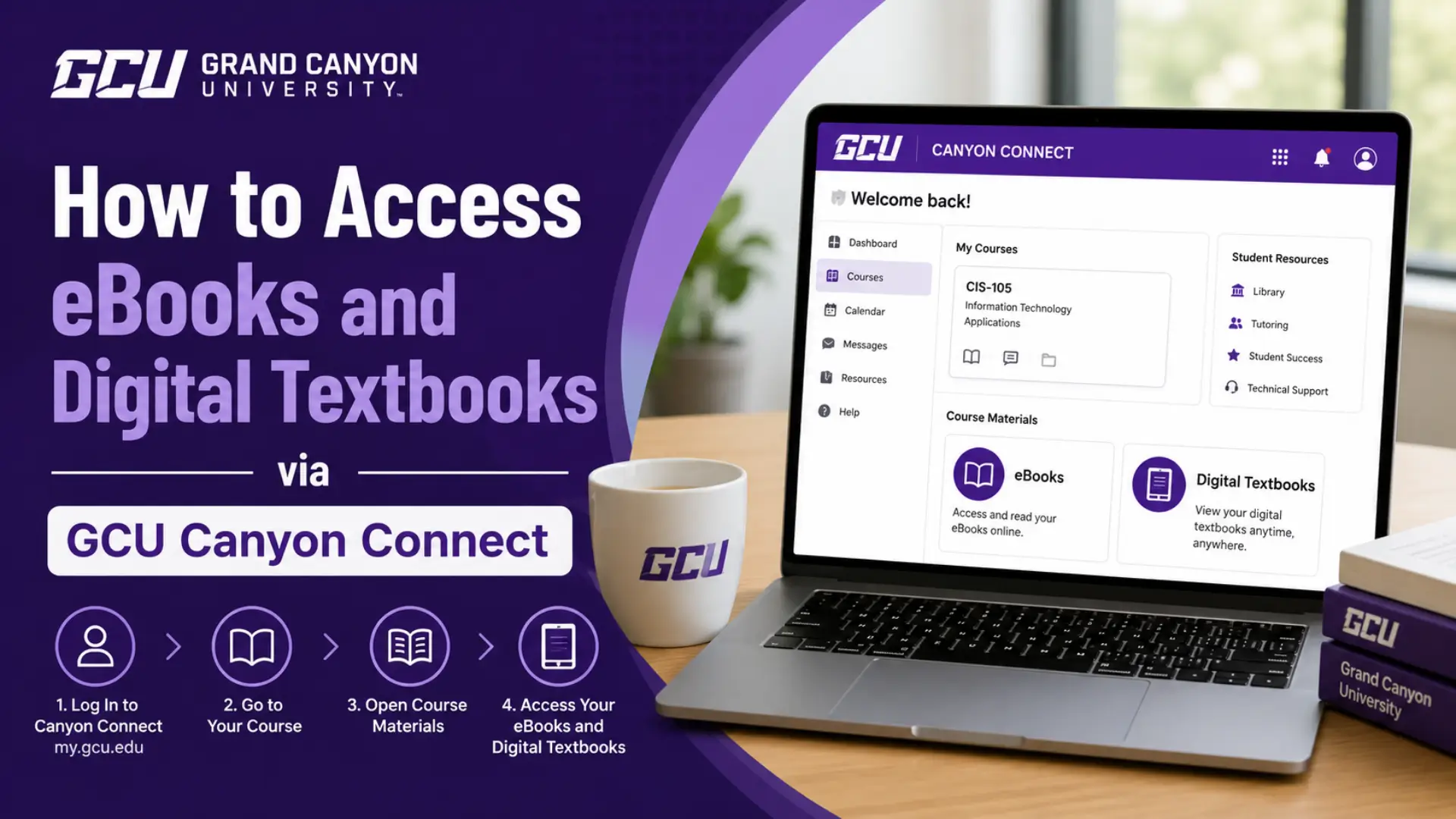
How to access eBooks and digital textbooks via GCU Canyon Connect is the first question every Grand Canyon University student asks before classes begin. Whether you are an online learner or on campus, knowing exactly where your course materials live saves you time, money, and stress. In this ultimate guide, you will learn the proven 7-step process to unlock your digital textbooks through Canyon Connect, HaloLearn, and BibliU without the hidden mistakes that trip up most students.
What Is GCU Canyon Connect?
How to access eBooks and digital textbooks via GCU Canyon Connect starts with understanding the platform itself. Canyon Connect is Grand Canyon University’s official course materials lookup system. It tells you exactly what textbooks, eBooks, or digital resources your specific course requires—before classes even begin.
According to GCU’s official technical support, Canyon Connect provides students and faculty with the status of required course materials for all classes. Some materials are digitally provided at no extra cost, while others may need to be purchased separately.
Think of Canyon Connect as your academic supply list. Instead of guessing what books you need, you enter your course code (like ACC-250 or NSG-318) and instantly see whether your materials are:
- Digitally Provided (free via GCU’s platforms)
- Student Purchase (requires buying from a vendor)
This single step saves students hours of confusion and hundreds of dollars in unnecessary purchases.
Why Digital Textbooks Matter for GCU Students
The shift to digital learning isn’t just a trend it’s a cost-saving revolution. Research from the National Association of College Stores shows the average undergraduate spends over $1,200 annually on textbooks.
GCU’s partnership with BibliU and its integrated digital delivery system directly addresses this crisis. Through Canyon Connect and HaloLearn, GCU students receive day-one access to required readings without the financial shock of traditional bookstore prices.
Key advantages include:
- Instant access on the first day of class
- Offline reading via the BibliU app
- Accessibility tools like text-to-speech and speed reading
- Synced annotations across all your devices
How to Access eBooks and Digital Textbooks via GCU Canyon Connect?
Follow this proven 7-step process to unlock your course materials without stress.
Step 1: Check Your Textbook Status on Canyon Connect
Before you hunt for books, verify what your course actually requires.
- Visit canyon-connect.gcu.edu
- Enter your course number (e.g.,
BIO-201,UNV-103) - Select your delivery method (Online, Campus, Evening)
- Review the material status:
- Digitally Provided = Access via HaloLearn/BibliU
- Student Purchase = Buy from your preferred vendor
Pro Tip: Bookmark this page. Check it before every semester starts.
Step 2: Log Into the GCU Student Portal
Your gateway to everything is the GCU Student Portal. Use your @my.gcu.edu email and password to sign in. This same login works across HaloLearn, BibliU, and Canyon Connect thanks to Single Sign-On (SSO).
Step 3: Navigate to Your HaloLearn Classroom
Once inside the portal:
- Click on your current course
- Look for the Class Resources or Course Materials tab on the left navigation menu
- This is where your digital textbooks live
Step 4: Access BibliU Digital Textbooks
Most GCU digital textbooks are hosted on the BibliU platform. Here’s how to open them:
- In your Course Materials tab, locate the BibliU link or eBook title
- Click the link you’ll be automatically logged in via SSO
- First-time users: You must consent to Analytics cookies before viewing
- Use the Brief Contents menu to jump between chapters
Critical Note: You cannot access BibliU books directly from the BibliU website or app until you first open them through HaloLearn. This authentication step is mandatory.
Step 5: Download the BibliU App for Offline Reading
Want to study without Wi-Fi? The BibliU app is essential.
Desktop:
- Download from BibliU’s official apps page
- Install for Windows or macOS 11.0+
- Log in via “Through your university/institution” → Select Grand Canyon University (Students and Adjuncts)
Mobile (iOS/Android):
- Search “BibliU” in the App Store or Google Play
- Requires iOS 11.0+ or Android 8.0+
- Alternatively, scan the QR code in your BibliU library after first web access
To download a book for offline use:
- Open the BibliU app
- Locate your textbook
- Tap the white download arrow in the top-left corner
- Wait for the “Download Complete” confirmation
Step 6: Download PDF eBooks Directly
Some courses offer direct PDF downloads instead of BibliU links.
- In Class Resources, click the GCU media link next to your eBook title
- On the Digital Resources page, click the PDF icon
- Right-click the icon
- Select “Save link as” (Chrome/Firefox) or “Save target as” (Edge)
- Choose a folder on your computer and save
Important: Even saved PDFs require an active internet connection to unlock contents initially. Always open them in Adobe Acrobat Reader DC for full functionality.
Step 7: Verify Access and Troubleshoot
Before your first assignment, confirm everything works:
- Can you open the book?
- Are your highlights syncing?
- Does offline mode function?
If you see a “book already open on another device” message, simply click “Read here” to switch devices.
Using BibliU for GCU Digital Textbooks
BibliU isn’t just a reader it’s a learning powerhouse. Here’s what GCU students can do:
| Feature | How It Helps You |
|---|---|
| Global Search | Find any term instantly across the entire textbook |
| Highlight & Annotate | Color-code key concepts and add personal notes |
| Text-to-Speech | Listen to chapters while commuting or exercising |
| Speed Reader | Adjust reading speed from 50 to 700 WPM |
| Save to PDF | Export up to 20 pages (or full book if unlimited) |
| Dark/Sepia Mode | Reduce eye strain during late-night study sessions |
| Synced Across Devices | Start reading on laptop, finish on phone |
Accessibility Win: BibliU holds a perfect 100% accessibility score from ASPIRElist, making it ideal for students with disabilities.
BibliU vs. PDF eBooks
| Factor | BibliU Platform | Direct PDF Download |
|---|---|---|
| Access Method | Course Materials link in HaloLearn | Class Resources → GCU media link |
| Offline Reading | Yes (via app download) | Yes (after initial online unlock) |
| Interactive Features | Full (highlights, search, TTS) | Limited (basic PDF reader) |
| Device Sync | Automatic across all devices | Manual file transfer |
| Print Options | Up to 20 pages at a time | Depends on publisher settings |
| Best For | Deep study and annotation | Quick reference and printing |
If your course offers BibliU, use it. The interactive features justify the slight learning curve. If you only see a PDF link, download and organize it immediately.
Benefits of GCU Digital Textbook Access
Why should you care about how to access eBooks and digital textbooks via GCU Canyon Connect? Here are the proven benefits:
- Day-One Access: No waiting for shipping. Your books are ready when classes start.
- Cost Reduction: Digitally provided materials are included in your tuition. No surprise bookstore bills.
- Study Anywhere: BibliU’s offline mode means you can read on planes, buses, or during internet outages.
- Better Grades: Searchable text and annotations help you review faster before exams.
- Eco-Friendly: Zero paper waste. One device holds your entire semester’s library.
- Accessibility Compliance: Built-in tools support students with visual impairments or learning disabilities.
Hidden Mistakes Students Make (And How to Avoid Them)
Even tech-savvy students stumble. Here are the critical errors to avoid:
Mistake 1: Trying to Log Into BibliU Directly First
The Fix: Always access your textbook through HaloLearn first. This authenticates your account and adds the book to your library.
Mistake 2: Ignoring Canyon Connect Before Semester Starts
The Fix: Check Canyon Connect two weeks before class. If a book says “Student Purchase,” you need time to order it.
Mistake 3: Not Downloading for Offline Use
The Fix: Wi-Fi fails. Servers crash. Download your BibliU books immediately after first access.
Mistake 4: Using the Wrong Adobe Reader
The Fix: Only Adobe Acrobat Reader DC properly unlocks GCU PDF eBooks. Free alternatives may fail.
Mistake 5: Forgetting the 20-Page Print Limit
The Fix: BibliU allows only 20 pages per save (unless your publisher set unlimited). Plan your printing accordingly.
Mistake 6: Not Updating the BibliU App
The Fix: Outdated apps cause loading errors. Check your app version in Settings regularly.
Frequently Asked Questions
Conclusion
Now you know how to access eBooks and digital textbooks via GCU Canyon Connect like a pro. The process is simple: check Canyon Connect, log into HaloLearn, click your Course Materials, and dive into BibliU or your PDF.
Don’t wait until the night before your first assignment. Check your textbook status today. Download the BibliU app. Bookmark your Course Materials tab. The students who prepare early are the ones who earn the A’s.