
How to View and Print Enrollment Verification at GCU?
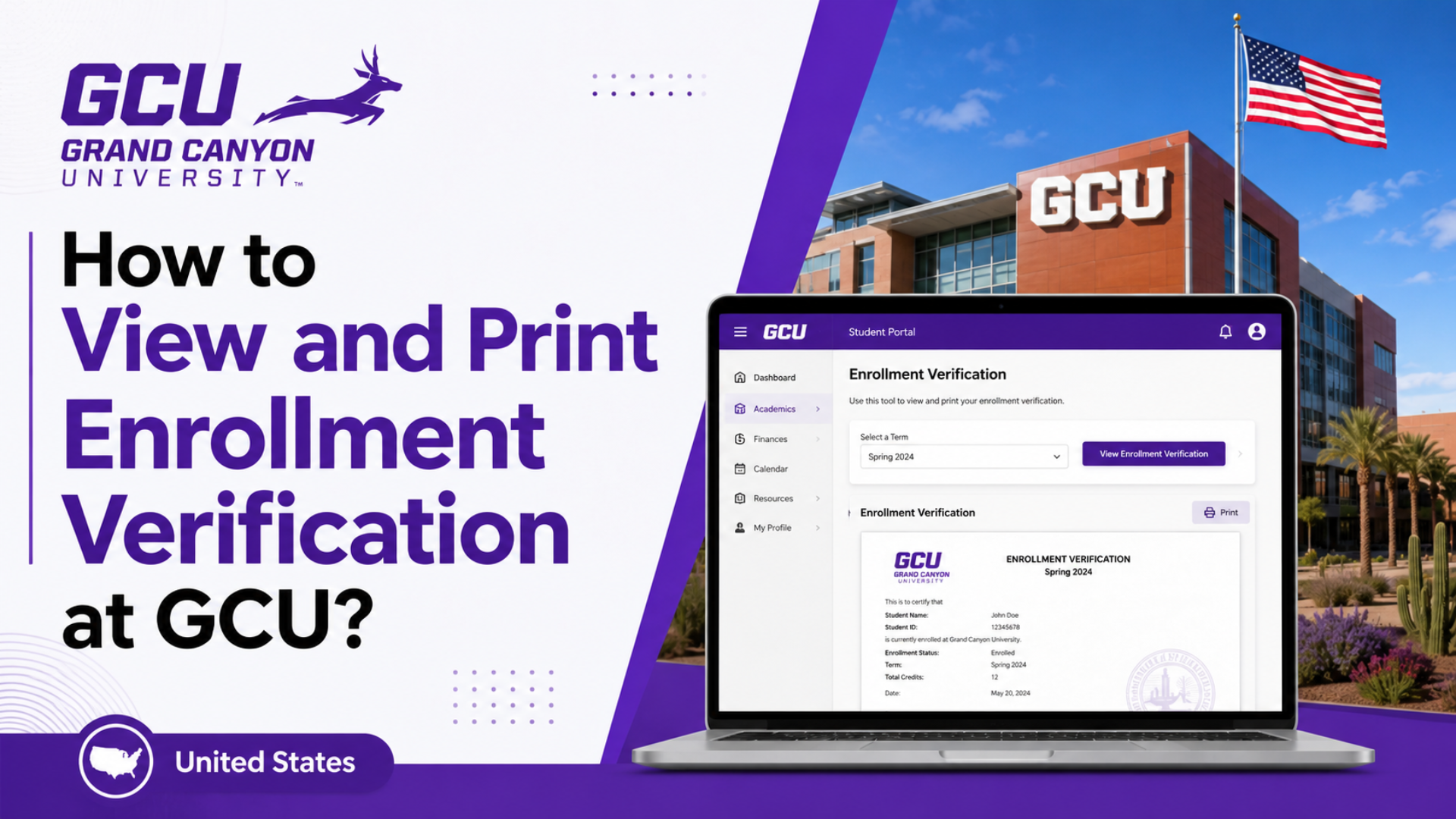
How to View and Print Enrollment Verification at GCU? Need proof that you’re enrolled at Grand Canyon University for a loan, insurance company, employer, or immigration form? This guide walks you through every practical way to view, download, and print your enrollment verification at GCU from the Student Portal to third-party services so you can get the document you need without wasting time on hold with support.
What Is an Enrollment Verification and Why You Might Need One
An enrollment verification (sometimes called a “proof of enrollment” or “certificate of enrollment”) is an official document confirming that you are currently registered as a student, along with details like your enrollment status (full-time or part-time), program of study, and expected graduation date. Unlike a transcript, it typically doesn’t include your grades or GPA it simply confirms that you’re a student.
You may be asked for this document by:
- Student loan lenders, to confirm you qualify for in-school deferment
- Insurance companies, since many health and auto insurers offer discounts to full-time students
- Employers, for tuition reimbursement programs or verifying student status
- Government agencies, for benefits, visas, or immigration paperwork
- Landlords, for student housing applications
- Scholarship or grant providers, to confirm continued eligibility
Because GCU serves both on-campus “Traditional” students and online/evening students, the exact steps you’ll use can vary slightly depending on which system holds your most current enrollment data. Below are the main routes GCU students use.
How to View and Print Enrollment Verification at GCU
Method 1: View and Print Your Class Schedule as Proof of Enrollment
For many everyday purposes a landlord, an insurance discount form, or a quick internal check your current class schedule doubles as informal proof that you’re enrolled. GCU makes this easy to pull directly from its dedicated schedule portal.
Steps to download your class schedule:
- Go to classschedule.gcu.edu in your browser.
- Log in using your regular GCU username and password (the same credentials you use for the GCU Portal).
- Once logged in, click Download Schedule to generate a PDF copy of your current class schedule.
- Open the downloaded PDF and print it, or save it to send electronically to whoever requested it.
This same page also lets you download your unofficial transcript, which some organizations accept as sufficient proof of active enrollment, especially when a schedule alone isn’t enough.
Tip: If the download button doesn’t respond or the PDF won’t generate, clear your browser cache, try a different browser, or reach out to your Student Services Counselor (SSC) for a manually generated copy.
Method 2: Use the GCU Student Portal
Your GCU Student Portal is the central hub for almost everything related to your academic record, and it’s usually the fastest starting point if you’re not sure which document you need.
- Visit gcuportal.gcu.edu.
- Select Student Access and log in with your GCU credentials.
- Look for the academic records or “My Information” section, where your enrollment status, student ID, and program details are listed.
- From here, you can navigate to the transcript request tool or the class schedule link to pull your enrollment documents.
If your login isn’t working, use the Forgot Password link on the portal’s sign-in page, or contact the GCU Help Desk for a reset — you’ll need your account back in working order before you can access any enrollment records online.
Method 3: Request an Unofficial Transcript Through Parchment
GCU processes transcript requests both official and unofficial through a system called Parchment. While a transcript includes grades and coursework (which an enrollment verification typically doesn’t), many institutions and lenders will accept an unofficial transcript as combined proof of enrollment and academic standing.
Steps to request through Parchment:
- Log in to your GCU Student Portal and click the transcript request option, or go directly to the Parchment request page if you can’t access the portal.
- If you don’t already have a Parchment account, select the option to create one and enter your basic information.
- Set a password that meets Parchment’s requirements (at least 10 characters, one uppercase letter, one lowercase letter, one number, and one special character).
- Check your email for a confirmation message from Parchment and either click Verify or manually enter the verification code.
- Enter your GCU Student ID number when prompted (you can find this in the My Information section of the Student Portal if you don’t have it memorized).
- Once Parchment locates your enrollment record, click Order to begin your transcript request.
- If you’re enrolled in more than one program, a dropdown will let you choose a specific program or select all of them.
- Track the status of your order anytime by logging back into Parchment and clicking Orders in the top corner of the page.
Standard orders are typically processed within a couple of business days, though rush processing may be available for an additional fee if you’re on a tight deadline.
Method 4: Request a Formal Enrollment Verification Letter
If the organization requesting proof specifically needs an official, signed enrollment verification letter rather than a transcript or schedule printout, your best move is to go straight to the source:
- Contact your Student Services Counselor (SSC). Your SSC can typically issue a formal letter confirming your enrollment status, expected graduation date, and credit load.
- Call GCU directly at 855-GCU-LOPE if you’re unsure who your current SSC is or need general guidance.
- Email the Office of Academic Records if your request is more formal for example, if a government agency or lender requires specific language or a signature on university letterhead.
Many universities, including GCU, also work with third-party verification services such as the National Student Clearinghouse for lenders and outside agencies that need to confirm your status independently. If a lender or insurer tells you they verify enrollment automatically each term, that’s usually happening through this kind of clearinghouse relationship rather than something you need to request yourself but it’s always worth confirming directly with your SSC exactly which method applies to your situation, since processes can be updated from term to term.
Common Issues and How to Fix Them
- Can’t log into the portal or classschedule.gcu.edu? Double-check that you’re using your GCU username (not a personal email) and that Caps Lock isn’t on. If you still can’t get in, use the password reset tool or call the Help Desk.
- Downloaded PDF won’t open or print? Make sure you have an updated PDF reader, like Adobe Acrobat Reader, and try downloading the file again rather than opening it directly in the browser.
- Enrolled before 2013 and can’t access records online? Older accounts sometimes aren’t fully integrated into the current Student Portal system. In this case, contact your SSC directly for a manually issued copy.
- Need the document sent directly to a third party? When requesting through Parchment, you can usually select electronic delivery straight to the recipient’s email or system instead of downloading it yourself useful for sending records to another school or a lender that requires direct submission.
- Outstanding balance on your account? Some institutions place a hold on transcript or verification requests if there’s an unresolved financial obligation. If your request seems stuck, check with the Office of Student Accounts to rule this out.
Conclusion
Whether you need a quick class schedule for an insurance discount or a formally signed enrollment verification letter for a loan deferment, GCU gives you more than one way to get there. For fast, informal proof, your class schedule or unofficial transcript from classschedule.gcu.edu will usually do the job. For anything requiring an official seal or signature, your Student Services Counselor and the Office of Academic Records are your best resources. Since login steps and available tools can shift slightly over time, it’s always smart to confirm the current process with your SSC if you run into anything unexpected — that way you get the exact document you need, the first time.